
Help Center
Learn how to use the School Check-In App effectively.
Step-by-step help for checking in, sharing pickup, fixing location settings, and getting the app. Select a topic below to expand.
Video Guides & Resources
Tap a video to watch a quick tutorial.
Getting Started
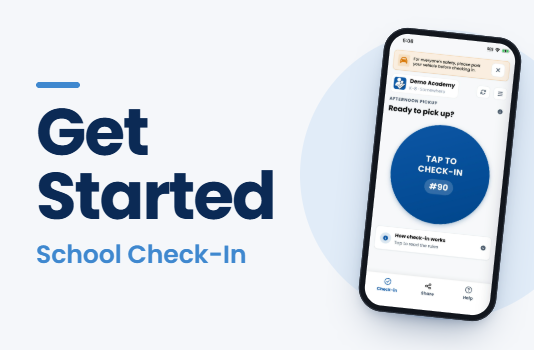 1:09
1:09Get Started
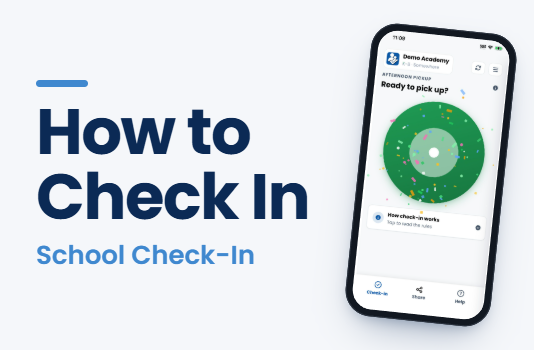 1:13
1:13How to Check In
Sharing Pickup
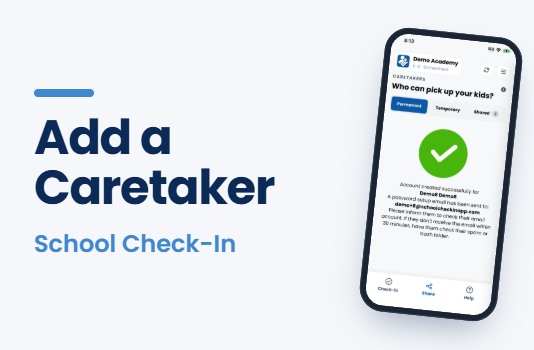 1:00
1:00Add a Caretaker
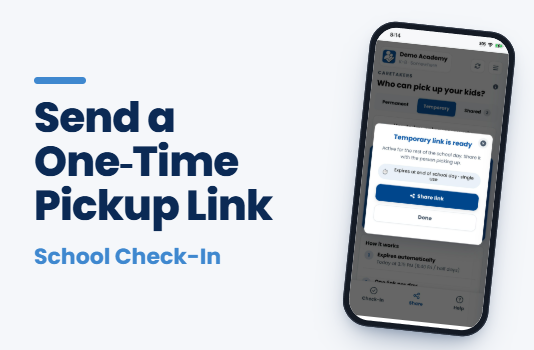 1:11
1:11Send a One-Time Pickup Link
iPhone / iOS Guides
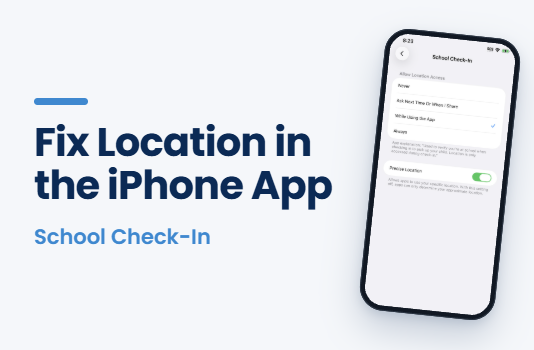 0:47
0:47Fix Location in the App
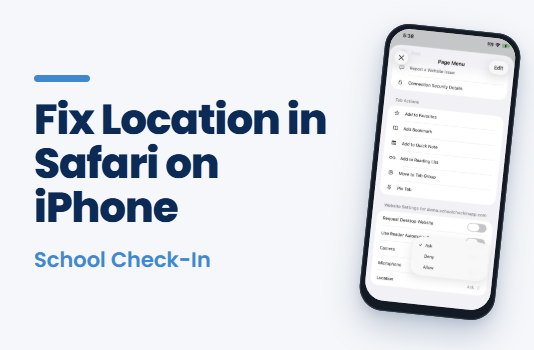 1:36
1:36Fix Location in Safari
Android Guides
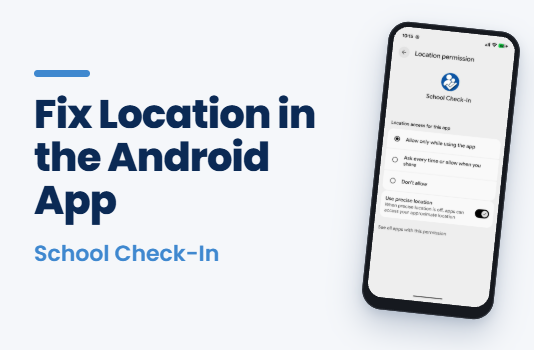 0:50
0:50Fix Location in the App
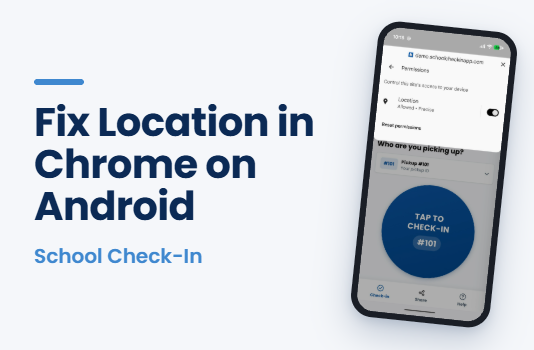 1:38
1:38Fix Location in Chrome
Downloadable Guides
How to use the App
How to Check In
- First, park safely near the school. You need to be inside your school’s pickup zone for check-in to work.
- Tap the big Check-In button. Your pickup ID is shown on the button. This tells the school you’re here.
- The first time you check in, your phone will ask for permission to use your location. Please choose "Allow While Using App" or "Allow" when prompted, and keep Precise Location on. This is essential to confirm you are at the school.
Using the website instead of the app? See what the pop-up looks like:
iPhone (Safari) example ↗
Android (Chrome) example ↗ - Check-in only works during your school’s pickup window. Your school sets these times, including any half days.
- If you’re picking up more than one student, you’ll see a dropdown above the check-in button listing each pickup ID. Select one at a time and check in for each.
- If you're not sure what to do or something isn’t working, please go to the front desk and ask for help. They’re happy to assist!
Fix Location Permission Issues
TURN ON "PRECISE LOCATION": School Check-In needs your exact location to confirm you’re at the school. Approximate location won’t work.
Prefer to watch? The Video Guides above show every step.
First: Close and Reopen
Close the School Check-In app (or the browser tab with your school’s check-in site) so it isn’t stuck in the background:
- Swipe up from the bottom of the screen and pause to see your open apps (on older iPhones, press the Home button twice).
- Swipe the app or browser away, then open it again.
Android Instructions
First, swipe down from the top of the screen and make sure the Location tile is on.
If You Use the School Check-In App
- Open Settings > Apps > School Check-In > Permissions > Location.
- Choose “Allow only while using the app” and turn Use precise location on.
- Go back to the app and check in again.
If You Use the Website in Chrome
- In Chrome: tap the tune icon (
 ) to the left of the web address. Tap Permissions and turn Location on.
 - Still blocked? Tap the three dots (⋮) at the top right, then Settings > Site settings > Location. Find your school’s website under “Not allowed”, tap the three dots next to it, tap Edit, choose “Allow”, then tap Confirm.
- Still not working? Open your phone’s Settings > Apps > Chrome > Permissions > Location. Choose “Allow only while using the app” and turn Use precise location on.
- Go back to Chrome, refresh the page, and check in again.
Added the Website to Your Home Screen and Still Stuck?
- Delete the check-in icon from your Home Screen.
- Open your school’s check-in website in Safari or Chrome, sign in, and choose “Allow” (with Precise on) when asked.
- Once check-in works, add it to your Home Screen again.
Still not working? Ask at the school’s front desk, or tap Contact Us at the bottom of this page.
Get the App
Download the free School Check-In app:


Prefer not to install it? Add your school’s check-in website to your Home Screen instead.
First, open your school’s check-in website. The link is in the welcome email you got from your school.
iPhone (Safari)
- Tap the Share button (
 ). In the newest Safari, tap ⋯ at the bottom right first.
 - Scroll down and tap “Add to Home Screen”.
- Tap “Add”.
Android (Chrome)
- Tap the three dots (⋮) at the top right.
- Tap “Add to Home screen” (it may say “Install app”).
- Tap “Install” or “Add”.
Bookmark Your School’s Check-In Website
Using the website instead of the app? Bookmark it so it’s easy to find at pickup. First, open your school’s check-in website (the link is in your welcome email).
iPhone
Using Safari:
- Tap the Share button (in the newest Safari, tap ⋯ at the bottom right first).
- Tap “Add Bookmark”, then “Save”.
Using Chrome:
- Tap the three dots at the bottom right.
- Tap “Add to Bookmarks”.
More help: Apple’s iPhone User Guide ↗
Android
Using Chrome:
- Tap the three dots (⋮) at the top right.
- Tap the star (☆) at the top of the menu. The page is saved to your bookmarks.
For Schools & Staff
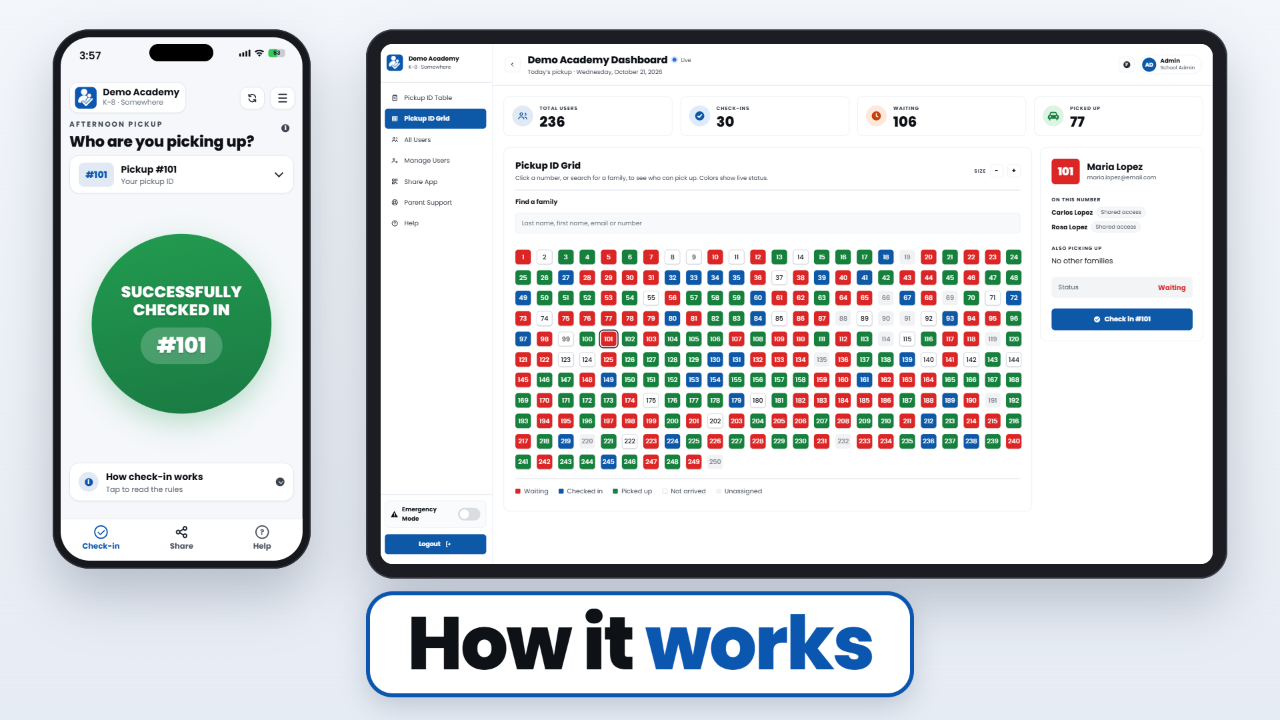
See how the parent app, teacher screen and office dashboard work together.
 1:17
1:17